Settings and access
This page helps company owners and administrators configure the workspace and control who can see what.
Company settings
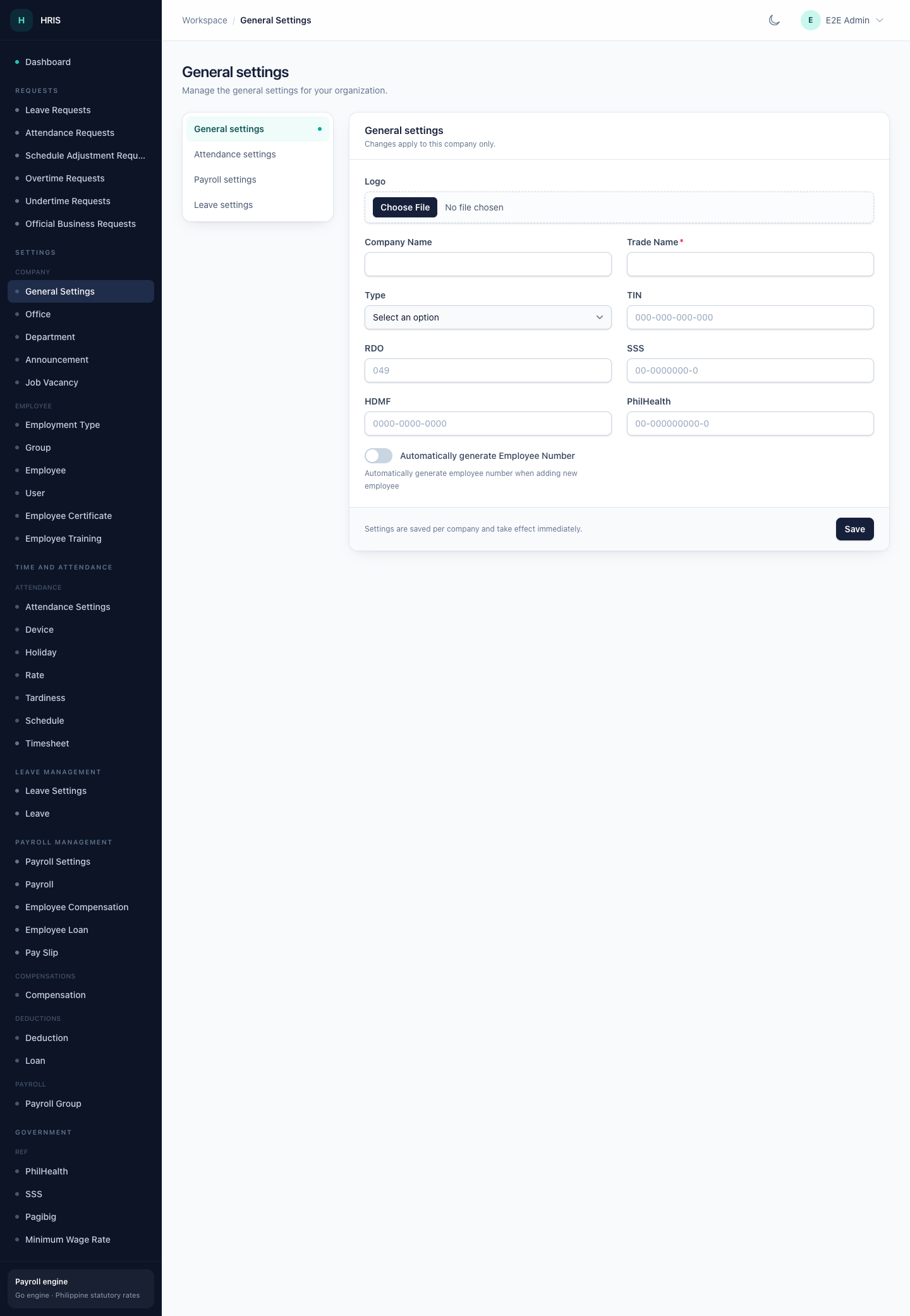
Open Settings in the sidebar. The available sections depend on your permissions.
General settings
Use Settings → Company → General Settings for company-level details such as the trade name, contact details, and other workspace defaults.
Attendance settings
Use Time and Attendance → Attendance Settings for rules that affect attendance, such as work hours and attendance behaviour.
Payroll settings
Use Payroll Management → Payroll Settings for payroll defaults that apply to the company.
Leave settings
Use Leave Management → Leave Settings for leave-related defaults and Leave Management → Leave Types for the leave catalogue. The catalogue is system-wide: a company overrides a shared type or adds its own instead of editing the shared row.
Reference data
Keep reference data tidy before adding employees and running payroll.
| Area | Where to manage it | Examples |
|---|---|---|
| Offices | Settings → Company → Office | Head office, branches, locations |
| Departments | Settings → Company → Department | HR, Finance, Operations |
| Employment types | Settings → Employee → Employment Type | Regular, probationary, contractual |
| Schedules | Time and Attendance → Schedule | Office hours, shifts, rest days |
| Holidays | Time and Attendance → Holiday | Regular and special holidays |
| Rates | Time and Attendance → Rate | Overtime, night differential, rest-day rates |
| Tardiness | Time and Attendance → Tardiness | Tardiness rules |
| Devices | Time and Attendance → Device | Biometric devices and locations |
| Compensations | Payroll Management → Compensation | Allowances and other earnings |
| Deductions | Payroll Management → Deduction | Recurring deductions |
| Loans | Payroll Management → Loan | Loan types |
| Payroll groups | Payroll Management → Payroll Group | Semi-monthly, monthly, and their rules |
| Sector settings | Settings → Sector | Sector-specific defaults, GSIS or SSS base, night differential |
| Statutory (PH) tables | Statutory (PH) | SSS, PhilHealth, Pag-IBIG, minimum wage |
Users, groups, and permissions
Users
Use Settings → Employee → User to manage admin and portal accounts. A user is linked to a company and, optionally, a group.
Groups
Use Settings → Employee → Group to define what a group can do. A group stores permissions for areas such as:
- company settings
- offices
- employees
- users
- departments
- devices
- holidays
The exact list depends on your configuration. A user in a group sees the menu entries and records the group allows.
Owners
A company owner can access the admin workspace and can reopen approved payrolls. Owners do not need a group to sign in, but a group can still be useful for keeping their menu tidy.
The access rule in plain language
- Owner: usually sees everything for the company.
- Group member: sees only the areas their group permits.
- No access: if the user has neither owner status nor a group with admin permissions, the admin workspace rejects the sign-in.
If someone can sign in to the portal but cannot sign in to the admin workspace, their group probably does not grant admin access.
Announcements and job vacancies
Use Settings → Company → Announcement and Job Vacancy if your group has those permissions. These are useful for internal communication and public job postings.
Certificates and trainings
Use Settings → Employee → Employee Certificate and Employee Training to record employee documents and development. These records appear on the employee detail page.
Common questions
A menu item is missing. Your group does not have that permission. Ask a company owner or administrator to update the group.
A user can sign in but sees no records. Check the user's company, group, and group permissions. Also confirm the records belong to the active company.
Can I hide a menu item for everyone? Menu visibility is configured by the workspace administrator. Ask them to review the hidden-menu configuration.
Can I delete a group or user? Deletion depends on your permissions and on whether the record is used by payroll or attendance history. Prefer deactivating or reassigning instead of deleting when history matters.
Who can reopen an approved payroll? Only a company owner. See Payroll.